
Please note : This help page is not for the latest version of Enterprise Architect. The latest help can be found here.
Transform Elements
There are two modes for initiating a Model Transformation, each of which can be started in two ways.
- To transform selected elements on a diagram, either:
- Select the Project | Transformations | Transform Selected Elements menu option, or
- From the context menu for the Classes on the diagram, select the Transform option.
- To transform elements in the package currently selected in the Project Browser, either:
- Select the Project | Transformations | Transform Current Package menu option, or
- From the context menu of the package in the Project Browser, select the Transform Current Package option.
The Model Transformation dialog displays.
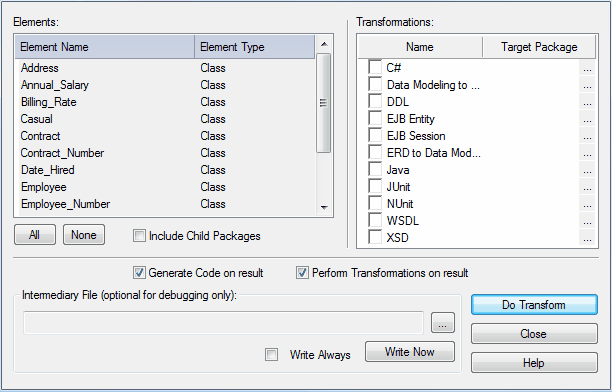
When the dialog displays, all elements are selected and all transformations previously performed from any of these Classes are checked.
Option |
Use to |
Elements |
Select (click on) the individual elements to be included in the transformation. |
All |
Select all of the elements from the list to be included in the transformation. |
None |
Deselect all of the elements from the list. |
Include child packages |
Select to include elements in child packages of the selected package. |
Transformations |
Select which transformations to perform and the package each of them should be transformed to. (Use the [ ... ] button to select the package in which the transformed elements are being created.) |
Specify whether or not to automatically generate code for transformed Classes that target code languages. Automatically generating code helps boost productivity in development. With this option selected, the first time you transform to the selected Class Enterprise Architect enables you to select a filename to generate to. Subsequent transformations automatically generate any Class with a filename set. |
|
Perform Transformations on result |
Specify if transformations previously done on target Classes should be automatically executed. See Chaining Transformations for more information. |
Intermediary File |
Specify the filename of the intermediary file (if any). |
Write Always |
Write the intermediary file to disk. |
Write Now |
Generate the intermediary file but do not perform the transform. |
Do Transform |
Execute the transform command. |
