
Please note : This help page is not for the latest version of Enterprise Architect. The latest help can be found here.
In-place Editing Tasks
To use the options that are available through the in-place editing menu, follow the steps below:
- Open the diagram containing the element.
- Click on the element, and on the item to manipulate within the element. The item line is highlighted in a lighter shade (the default is white), to indicate that it has been selected.
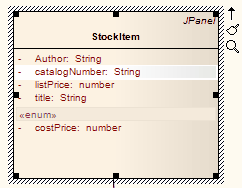
- Edit and manipulate the items in the element, either by pressing the appropriate keyboard keys or by right-clicking on the highlighted item and choosing a task from the Element Items context menu. The following commands are available:
To... |
Select menu option... |
Or press... |
Change the name, scope or stereotype of the element or element item |
Edit Selected |
[F2] |
Display the dialog containing details of the element |
[Enter] |
|
Insert a new item in the element |
Insert New After Selected |
[Insert] |
Locate the item in the Project Browser |
Find in Project Browser |
|
Add an attribute to the element |
Add Attribute |
[Ctrl]+[Shift]+[F9] |
Add an operation to the element |
Add Operation |
[Ctrl]+[Shift]+[F10] |
Insert a feature on the specific element item, such as Maintenance features and Testing features |
Add Other |
[Ctrl]+[F11] |
Delete the selected item from the model |
[Delete] |
|
Display the source code for the element. |
View Source code |
[F12] |
Set a breakpoint on a highlighted operation (including a breakpoint, start recording marker, end recording marker or stack auto-capture marker). |
Set Breakpoint |
|
Navigate Diagram Selection, to navigate the diagram between elements without having to use the mouse |
|
[Ctrl]+[Shift]+[arrow key] |
Toggle element highlight option on and off |
|
[Shift]+[Enter] |
Other options that are available while editing element attributes or operations in a diagram include:
To... |
Press... |
Accept current changes |
[Enter] |
Accept current changes and open a new slot to add a new item |
[Ctrl]+[Enter] |
Abort the edit, without save |
[Esc] |
Display the context menu for in-place editing |
[Shift]+[F10] |
Invoke the Select <Item> dialog |
[Ctrl]+[Shift]+[Space] |
Note: |
Most of the in-place editing menu commands have keyboard alternatives. For many of them, if the selected item happens to be off-screen when you press the appropriate keys, the diagram automatically scrolls to show the whole element, so that you can see what you are changing. |
