
Please note : This help page is not for the latest version of Enterprise Architect. The latest help can be found here.
View and Manage Locks
From time to time it might be necessary to examine or delete locks placed on elements by users. Enterprise Architect provides a function to view and manage active locks.
Notes: |
|
Delete a Lock
To view locks and, if necessary, delete them, follow the steps below:
- Select the Project | Security | Manage Locks menu option. The Active Locks dialog displays.
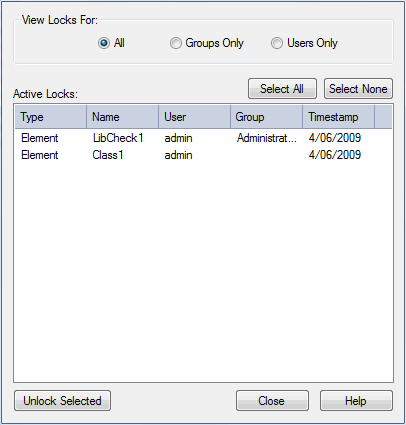
- In the View Locks For panel, click on the radio button for the type of lock to view: All, Groups Only or Users Only. Locks of the appropriate type are listed in the Active Locks panel. If you want to display the resulting information in a more readable layout, you can resize the dialog and its columns.
- To remove a lock, click on it and click on the Unlock Selected button.
- When finished, click on the Close button to close the dialog.
The material ("material" includes all pages, documents and on-line graphics) on this web site is protected by copyright law. (C) 1998-2010 Sparx Systems Pty Ltd.
