
Please note : This help page is not for the latest version of Enterprise Architect. The latest help can be found here.
Maintain Users
If you enable security you have access to the Security Users dialog, which you can use to set up more users for your model.
Note: |
You must have Security - Manage Users permission to maintain users, and Change Password permission to change the password of the current user; the initial Admin administrator automatically has these permissions. |
Set Up a User
To set up a user for your model, follow the steps below:
- Select the Project | Security | Manage Users menu option. The Security Users dialog displays.
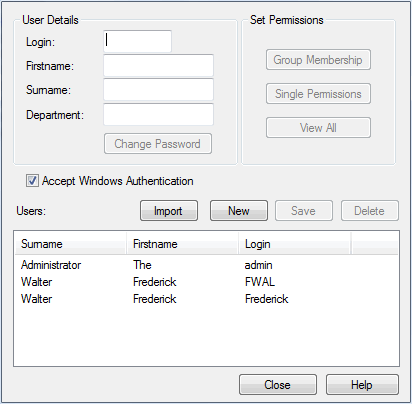
- You can use the Security Users dialog to set up new users by providing their name and other details. You can also import user IDs from a Windows Active Directory, assign User IDs to groups, set up Single Permissions or View All permissions for the currently selected user.
- To identify a new user on this dialog, click on the New button and type in the user's login ID, first name and last name. If required, also provide the user's department name.
- To set the user's password, click on the Change Password button. The Change Password dialog displays.

- In the New password field, type the user's password. This must be 12 characters or less in length.
- In the Retype new field, type the user's password again, for confirmation.
- Click on the OK button.
- A 'Password Changed' message displays. Click on the OK button.
- When you have entered the details for the user, click on the Save button. Either click on the New button to add another user, or the Close button to exit the Security Users dialog.
Notes: |
|
The material ("material" includes all pages, documents and on-line graphics) on this web site is protected by copyright law. (C) 1998-2010 Sparx Systems Pty Ltd.
